Install Echo Translate on your computer, then open My Words → More → Import words in the extension. The dialog has Kindle, Eudic and CSV tabs. Choose the source of your word list.
Add to Chrome Add to Edge Added to Chrome Added to Edge Also on Edge Install it on a computerEcho Translate is an extension for Chrome and Edge, so it can’t be installed on a phone. Open this address on your computer:
echo-translate.com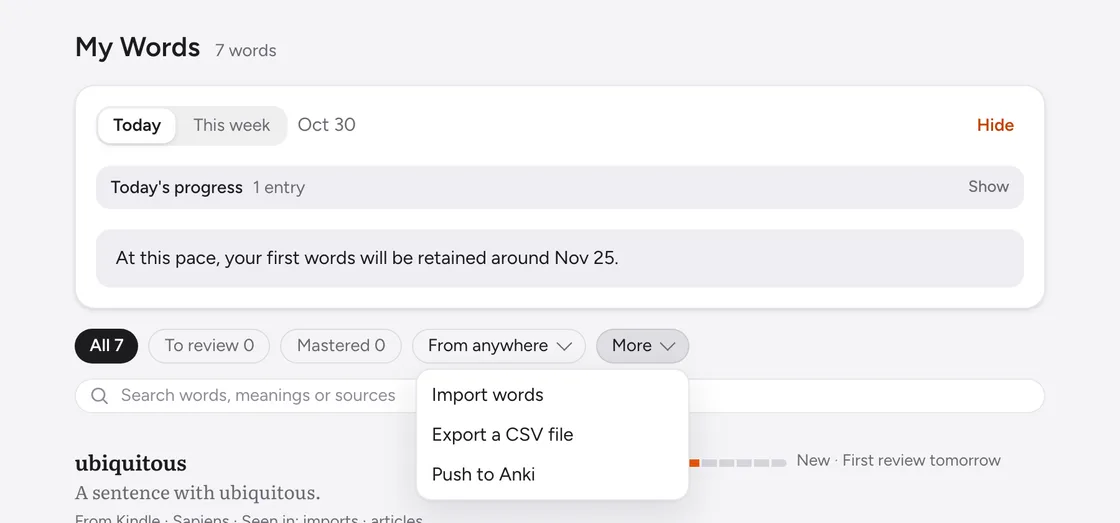
Kindle: find vocab.db, then choose your books
- Connect the Kindle to your computer with a USB cable.
- Open
system/vocabularyon the Kindle drive and findvocab.db. On a Mac, press ⌘⇧. to show hidden files. - Select the Kindle tab and drop the file into the dialog, or click to choose it.
- The preview lists books with word counts. Choose the books to import, leave “Skip the words marked mastered on the Kindle” checked, then click Import.
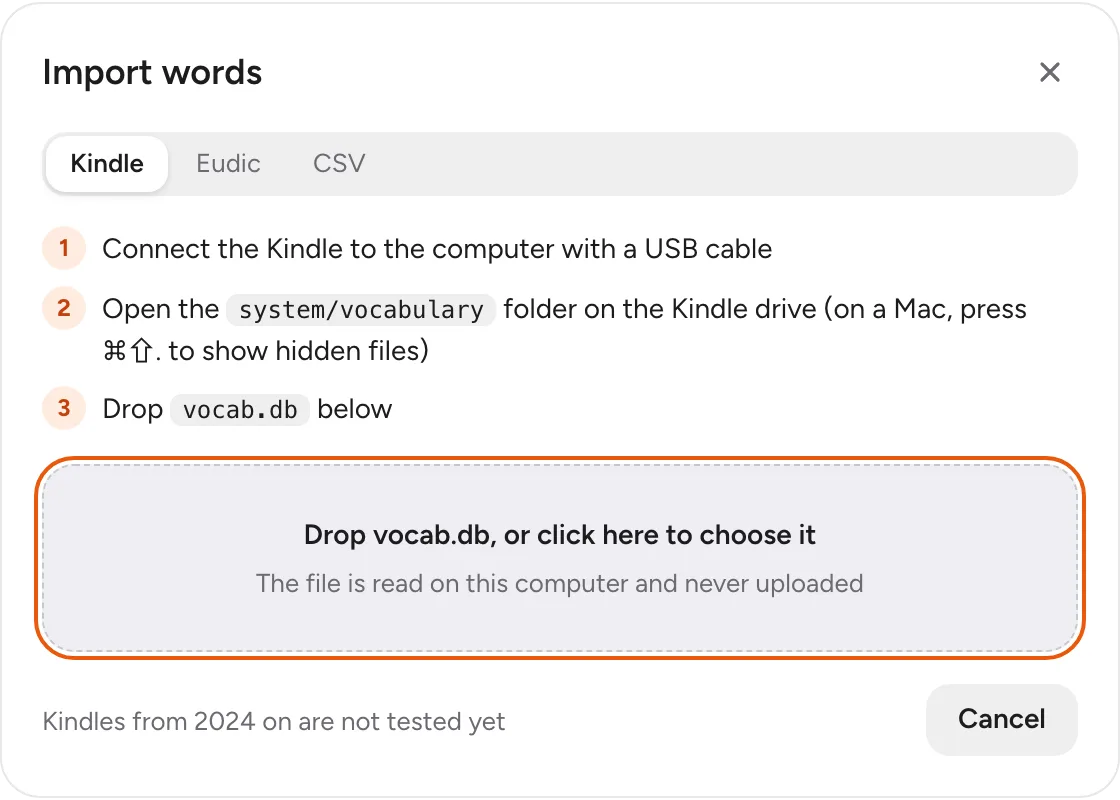
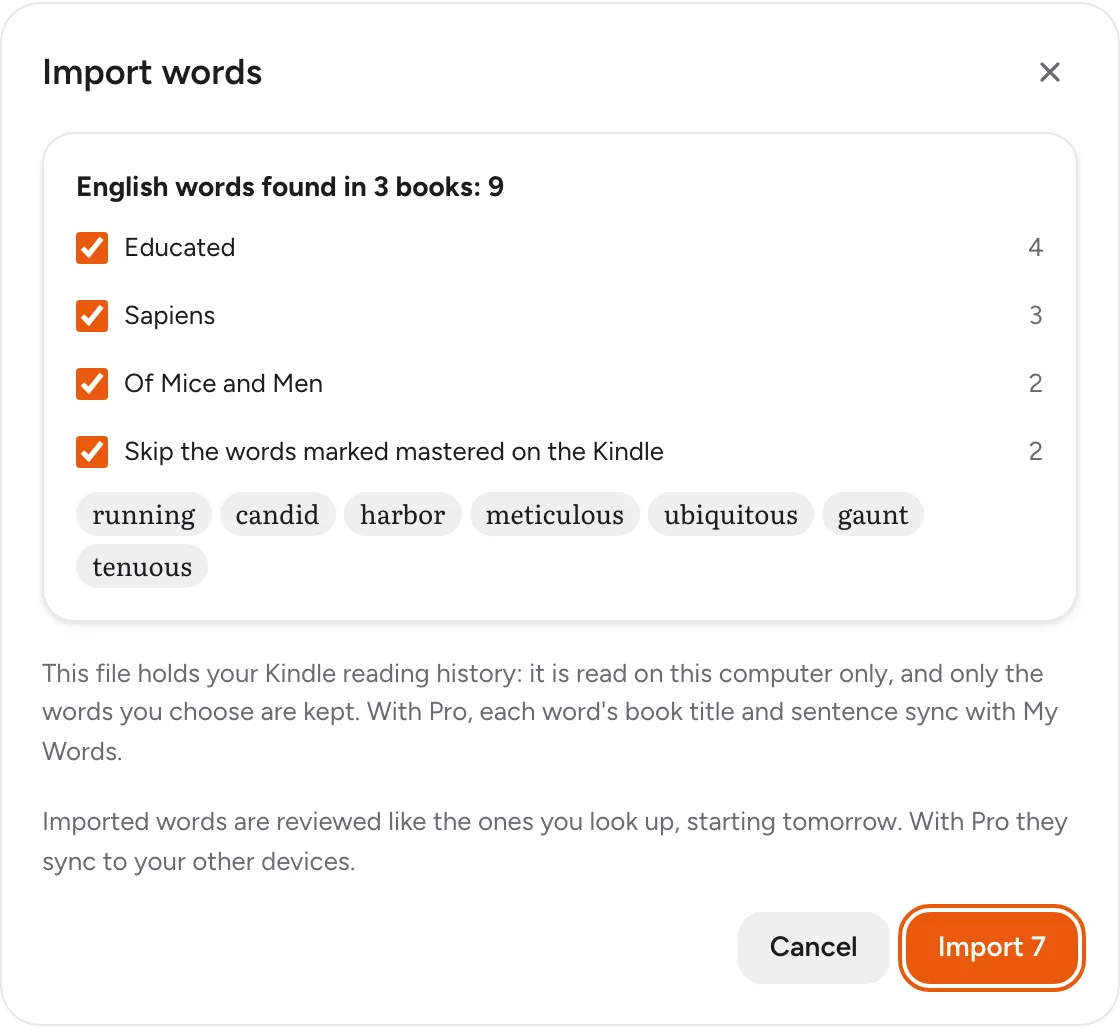
The file is read on this computer only and is never uploaded. Only the words you choose are kept. With Pro, each word's book title and sentence sync with My Words on your other devices.
Compatibility: tested on Kindles up to the 2023 models. Models from 2024 onward have not been verified yet. Only English words are imported. If your Kindle syncs vocabulary only to the cloud and has no accessible vocab.db, this import path cannot work: it needs that file.
Eudic (欧路词典): authorization code → word list → read
- Sign in at my.eudic.net's OpenAPI authorization page and copy your authorization code.
- Select Eudic in the import dialog, paste the code and click Connect.
- Choose a word list and click Read the words. Eudic limits reading speed, so a big list takes a few minutes.
- In the preview, you can leave “Skip the words marked mastered in Eudic” checked. Confirm your choice and click Import.
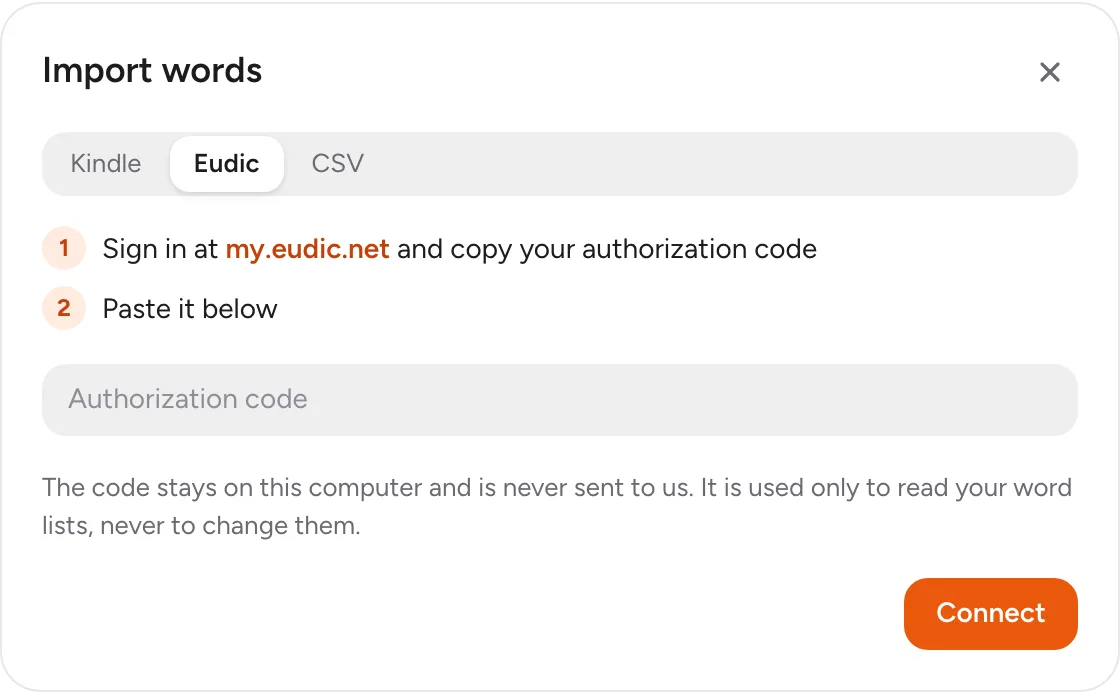
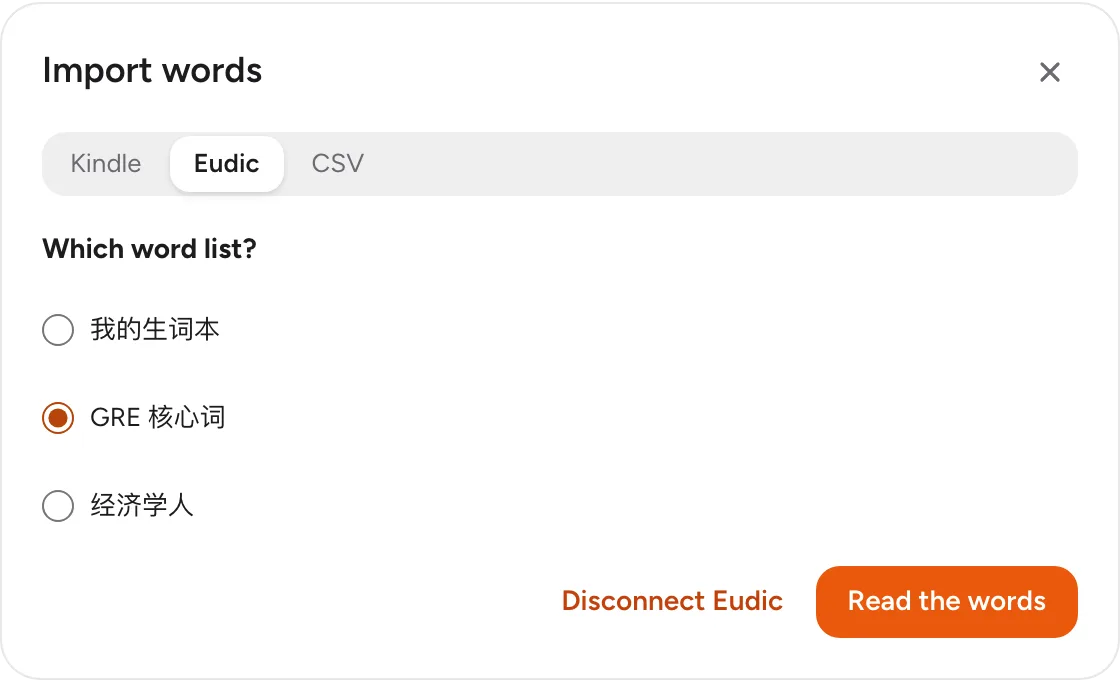
Eudic import supports English only and reads at most the newest 5,100 words of a list. Older words are outside this import's reading range.
Your first week after importing
Import a set of words today, then keep reading English pages as usual. When those words appear, they are highlighted. Highlights cover your entire word book with no word count limit, including on the free plan. Keep the extension and word highlighting switched on.
Open review tomorrow. The free plan's My Words view and review cover the latest 50 words added, so start with a book or list you want to work on first. Older words still get highlighted on web pages.
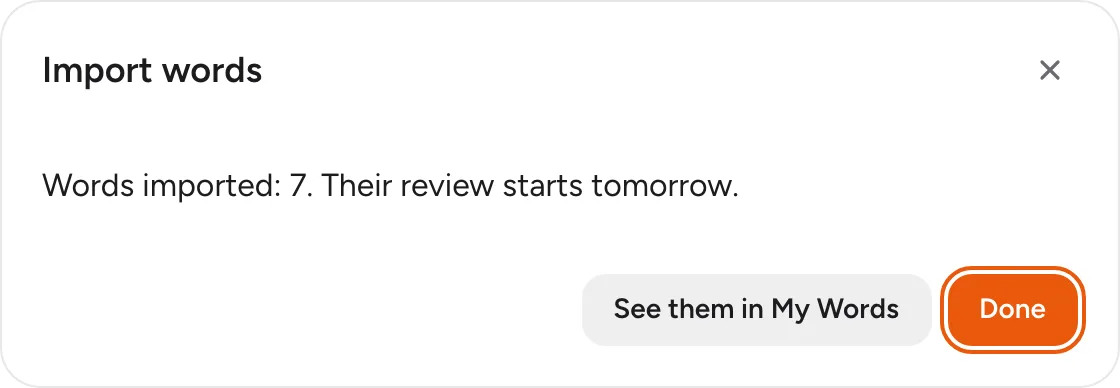
See pricing for the free plan and Pro limits.
Add to Chrome Add to Edge Added to Chrome Added to Edge Also on Edge Install it on a computerEcho Translate is an extension for Chrome and Edge, so it can’t be installed on a phone. Open this address on your computer:
echo-translate.com